 Chat with all AI
Write, reply to and improve emails with AI
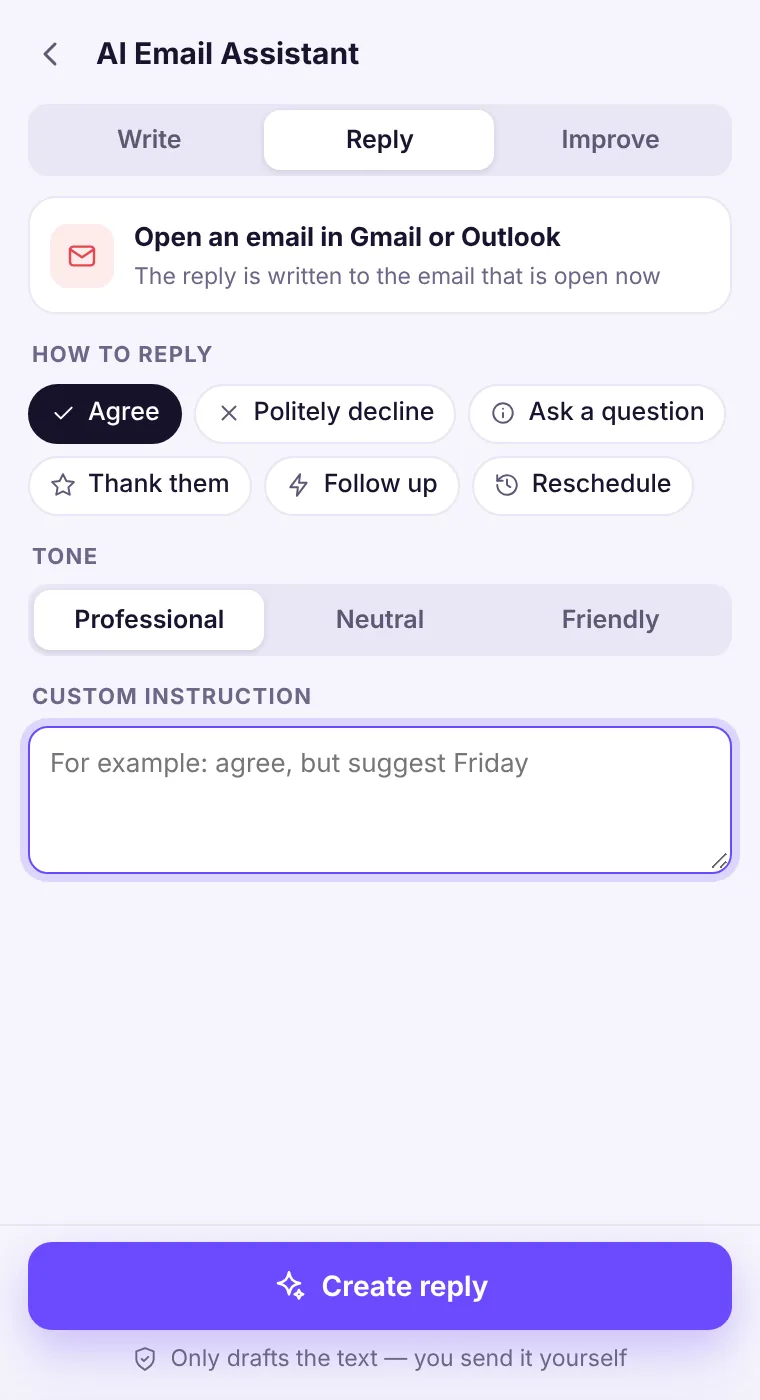
Open Email from the home screen. Three tabs cover everything: Write a new email, Reply to the email open in your tab, or Improve a draft you paste in.
How it works
- Open the email in Gmail, Outlook or any webmail (for replies).
- Choose Email on the home screen and pick a tab.
- Set how to reply (Agree, Politely decline, Ask a question, Thank them, Follow up, Reschedule) and a tone (Professional, Neutral, Friendly).
- Add a custom instruction if you like, then press Create. Copy the draft and send it yourself.
You stay in control
The assistant only drafts text. It never sends emails, never logs into your mailbox and never clicks anything on the page.Model tips
Claude Sonnet 5.5 is excellent for warm, natural emails. GPT-6.1 Terra is great for crisp, structured business replies. Muse Ember is quickest for short answers.See it in the extension
Frequently asked questions
Does it read my inbox?
No. For a reply, it reads only the email page open in your active tab, and only when you press Create reply.
Which email services work?
Any webmail you open in Chrome — Gmail, Outlook, Yahoo, Proton and others — as long as the email text is visible on the page.
Every top AI model, one side panel
Try GPT-6.1, Claude, Muse and Grok free — 3 requests, no card needed.