 Chat with all AI
Code documentation with AI
Generate docstrings, README sections and comments that explain intent, not just syntax. Document functions and modules so others can use them.
How to do it
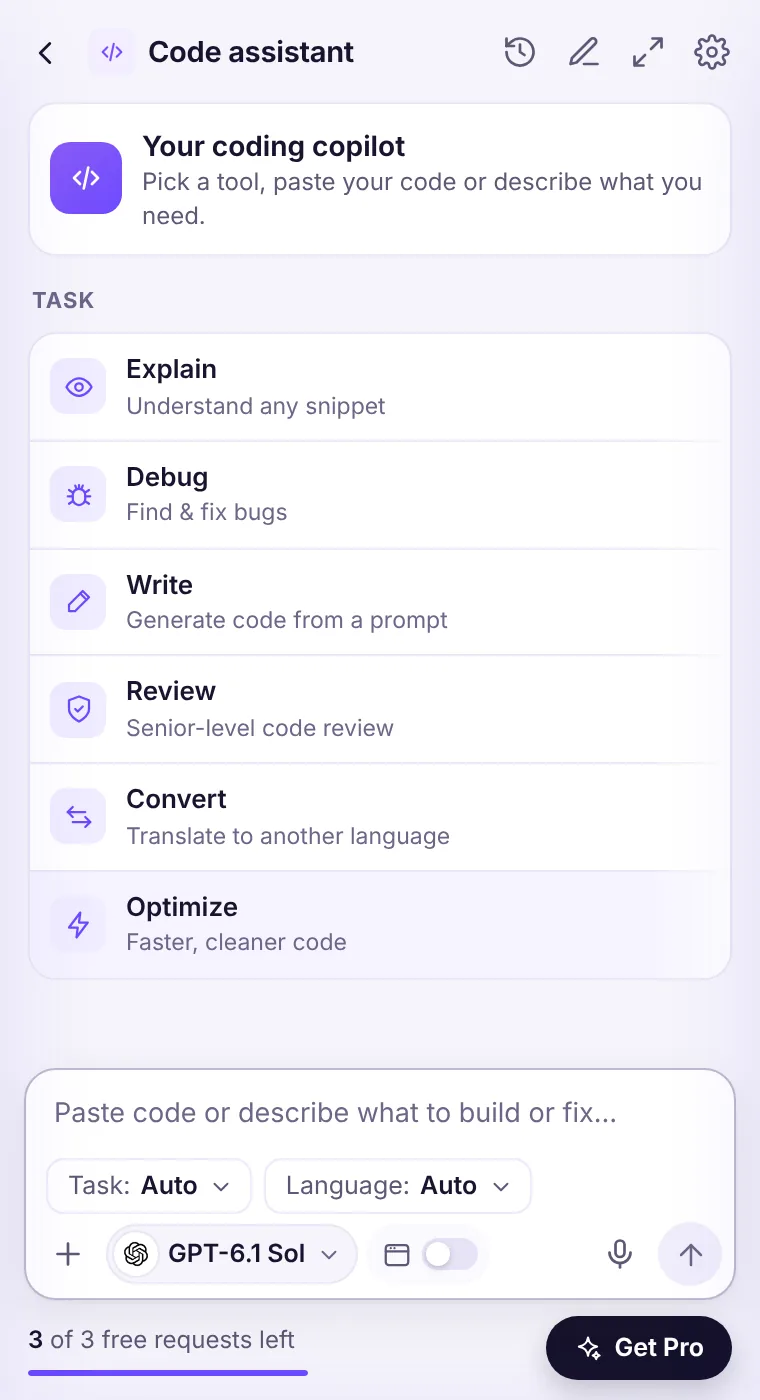
- Open the side panel and choose Code on the home screen.
- Pick the Docs task and a language (or Auto).
- Paste your code or select it on the page and right-click → Explain this code.
- Ask follow-ups or switch models to compare.
Example prompt
Write a docstring and a short README section for this module. Include a usage example.
Tips for better results
- Include the exact error message and what you expected.
- Mention versions (Node 22, Python 3.13, React 19).
- Ask for the reasoning first, then the code.
- For important code, ask a second model to review the first answer.
See it in the extension
Frequently asked questions
Which model is best for code documentation?
Claude Opus 5.5 and GPT-6.1 Sol are the strongest for hard cases; Claude Sonnet 5.5 and GPT-6.1 Terra are faster for everyday use.
Does it support my language?
Yes — pick from JavaScript, TypeScript, Python, Java, C#, C++, Go, Rust, PHP, Ruby, Swift, Kotlin, Dart, SQL, HTML/CSS, React, Vue, Node.js, Bash or Auto.
Is my code stored?
No. Code you send is processed to create the answer and not stored on our servers. Don't paste secrets like API keys.
Every top AI model, one side panel
Try GPT-6.1, Claude, Muse and Grok free — 3 requests, no card needed.